Table of Contents
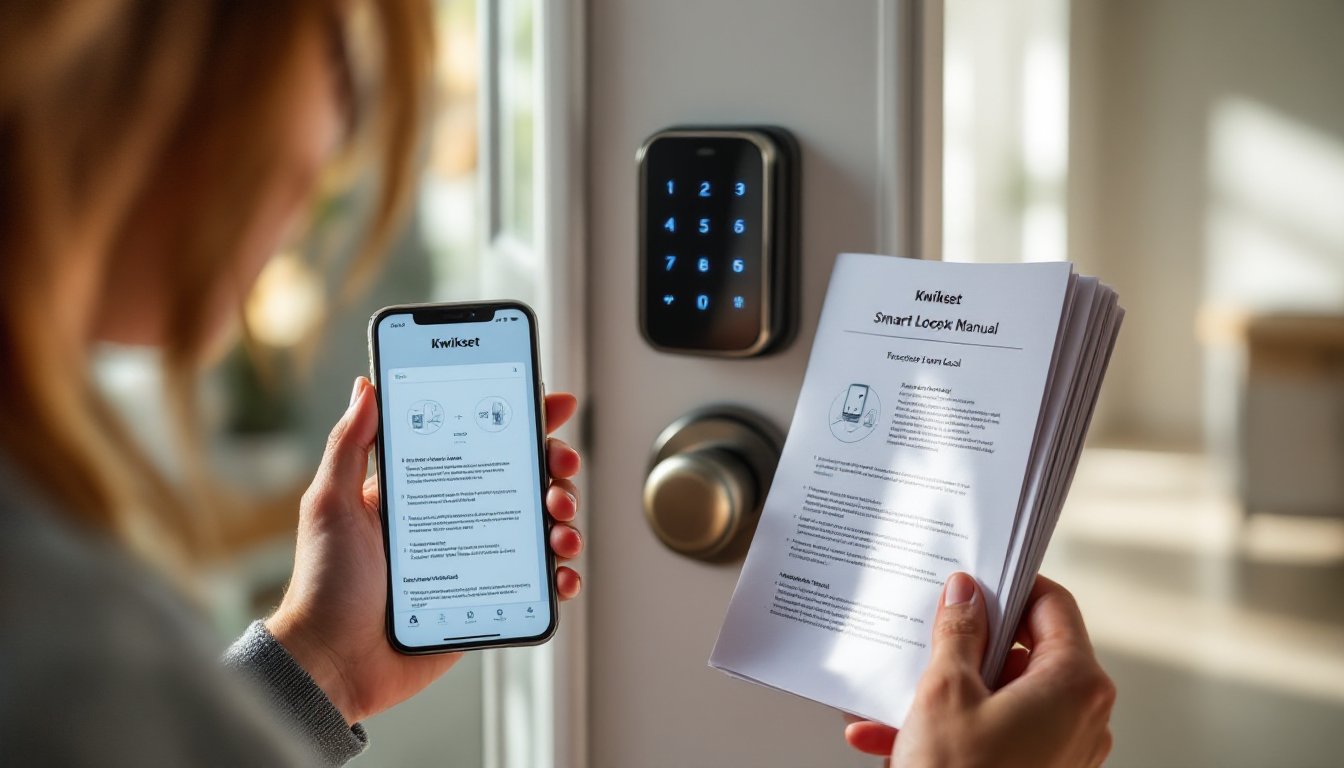
ToggleLost the paper manual that came with your Kwikset smart lock? Or maybe you’re staring at a lock that won’t pair, a keypad that’s blinking red, or a touchscreen that’s stopped responding, and you need answers fast. The Kwikset smart lock manual PDF is your go-to resource for installation steps, programming instructions, and troubleshooting flowcharts that can save you a service call. Whether you’re dealing with a Halo, Premis, or Kevo model, tracking down the right manual and knowing how to use it makes the difference between a frustrating afternoon and a working lock.
Key Takeaways
- The Kwikset smart lock manual PDF is essential for installation, programming, and troubleshooting specific to your model—Halo, Premis, or Kevo—saving time and preventing costly service calls.
- Find your exact manual on kwikset.com/support by searching your model number (stamped on the interior assembly), or use the FCC ID database for discontinued or private-label models.
- Your manual contains critical installation torque specifications, LED blink pattern diagnostics, and compatibility matrices for smart home platforms that generic guides cannot provide.
- Common fixes like factory resets, Wi-Fi band splitting, and Z-Wave re-inclusion are detailed in the troubleshooting section and vary by model—following the exact procedure prevents programming errors.
- Proper installation per the manual’s specifications strengthens warranty claims and ensures compliance with ANSI/BHMA security standards, protecting both your security setup and your investment.
Why You Need Your Kwikset Smart Lock Manual
Smart locks aren’t plug-and-play. Each Kwikset model has specific programming sequences, app pairing steps, and factory reset procedures that aren’t obvious from the hardware alone. The manual walks you through initial setup, like setting master codes, enabling auto-lock delays, and syncing with Z-Wave or Wi-Fi hubs, details that generic smart home guides can’t cover.
Beyond installation, the manual includes diagnostic charts that decode LED blink patterns and beep sequences. A flashing amber light on a Halo lock, for instance, means something different than a solid red on a Premis. Without the manual, you’re guessing. With it, you can pinpoint low batteries, programming errors, or connectivity failures in minutes.
Manuals also list compatible accessories and firmware requirements. If you’re adding a door position sensor or upgrading to a new smart home platform, the manual tells you which versions work and which don’t. Skipping this step can lead to returned products or incompatible setups.
Finally, warranty claims often require proof of proper installation. If your lock fails and you need a replacement, having followed the manual’s torque specs for mounting screws and alignment steps strengthens your case. It’s not just a setup guide, it’s documentation.
Where to Download Your Kwikset Smart Lock Manual PDF
Official Kwikset Website Resources
Kwikset hosts all current and legacy manuals at kwikset.com/support. Navigate to the Support or Resources section, and you’ll find a searchable library organized by product category (smart locks, traditional deadbolts, handlesets). Each listing includes installation guides, user manuals, quick-start sheets, and mounting templates as separate PDFs.
For most users, the Installation and User Guide is the critical download, it combines mounting instructions, programming steps, and troubleshooting in one document. Quick-start guides are shorter (usually 4–6 pages) and cover only basic pairing: they’re fine if you’ve installed locks before and just need a refresher on app setup.
Kwikset’s site also hosts firmware update instructions and compatibility matrices for smart home platforms (HomeKit, Alexa, Google Assistant, SmartThings). These aren’t always bundled with the manual, so download them separately if you’re integrating with a hub.
If the lock is more than five years old, check the Legacy Products section. Discontinued models like the original Kevo (1st gen) may not appear in the main support catalog.
Finding Manuals by Model Number
Your model number is stamped on the interior assembly of the lock, usually on the back plate near the battery compartment or on a label inside the battery door. It’s a mix of letters and numbers (e.g., 99380-001, 938CNT-15S). Write it down before you start searching.
On the Kwikset site, use the model number in the search bar rather than the product name. Names like “Halo” or “Premis” cover multiple SKUs with different finishes, keyways, and communication protocols (Z-Wave vs. Wi-Fi). The model number narrows it to your exact unit.
If Kwikset’s site doesn’t return results, try the Federal Communication Commission (FCC) ID database at fcc.gov/oet/ea/fccid. Every wireless device sold in the US has an FCC ID (also printed on the lock’s interior label). Entering it returns the original filing, which includes user manuals and technical schematics submitted for certification. It’s a workaround for obscure or private-label models.
Essential Information Inside Your Kwikset Manual
The manual opens with a parts diagram and hardware list. Cross-check this before you install, missing screws or the wrong latch length (2-3/8″ vs. 2-3/4″ backset) will stall the project. Kwikset ships most locks with adjustable latches and both screw types, but not all.
Installation steps are numbered and illustrated. Pay attention to torque warnings: overtightening the interior mounting screws can crack the plastic housing or misalign the deadbolt, causing binding. The manual specifies hand-tight plus a quarter turn, resist the urge to crank it down with a drill.
Programming sections explain how to enter the master code, add user codes, and set up one-touch locking. Some models require you to enable these features via the keypad before the app will recognize them. The sequence is model-specific, so follow it exactly. Independent smart home device reviews often highlight setup quirks worth noting.
Safety and code compliance notes are buried in the fine print but matter. Kwikset smart locks are ANSI/BHMA Grade 2 certified (some Premis models are Grade 1), meaning they meet residential security standards. The manual also notes that the lock should not be installed on gates, sliding doors, or non-standard door preps, doing so voids the warranty.
Troubleshooting charts list common failure modes: keypad unresponsive, lock jams, low battery warnings, and connectivity drops. Each symptom gets a checklist of fixes, from factory resets to re-pairing. This section alone can save a $100+ locksmith visit.
Common Kwikset Smart Lock Models and Their Manuals
Kwikset Halo is the company’s Wi-Fi deadbolt, no hub required. The Halo manual (publication 100093803) covers both touchscreen and traditional keypad versions. Key sections include Wi-Fi setup via the Kwikset app, two-factor authentication, and remote access settings. The installation process and performance have been covered extensively by reviewers who note its straightforward pairing.
Kwikset Premis is the Z-Wave/Zigbee model for use with smart home hubs like SmartThings or Ring Alarm. Its manual (publication 100093801) focuses on hub pairing, scene automation, and mesh network troubleshooting. If your Premis won’t stay connected, the manual walks through Z-Wave exclusion and re-inclusion, a step many users skip.
Kwikset Kevo (2nd gen) uses Bluetooth and touch-to-open activation. The Kevo manual (publication 100093804) details phone proximity settings, eKey sharing, and battery optimization. The touch sensor is finicky: the manual specifies that keys must be Kevo-compatible smart keys, and capacitive touch works best with bare fingers, gloves reduce reliability.
Kwikset Convert is a retrofit kit that turns an existing deadbolt into a smart lock. Its manual (publication 100093802) includes measurement guides to ensure your current hardware is compatible (standard ANSI prep, 2-1/8″ cross bore, 1″ edge bore). If your door has a non-standard bore or a mortise lock, Convert won’t fit.
All manuals are updated periodically for firmware changes. Check the revision date on the PDF’s cover page. If your lock’s firmware is newer than the manual, download the latest version, programming steps sometimes change with updates.
Troubleshooting Tips Using Your Manual
Lock won’t program a new code: Turn to the programming section and verify you’ve entered the master code correctly. Many models require you to press the Program button (usually hidden behind the battery cover) before entering codes. If you’ve hit the wrong button sequence, perform a factory reset per the manual’s instructions, typically holding the Program button for 10–15 seconds until the lock beeps three times.
Keypad is unresponsive or freezing: Check the troubleshooting chart for battery voltage requirements. Kwikset smart locks need four AA batteries, and performance drops below 1.3V per cell. The manual recommends alkaline or lithium (lithium lasts longer in temperature extremes). If you’ve installed rechargeable NiMH batteries, low voltage can cause erratic behavior.
Deadbolt jams or doesn’t fully extend: The manual’s alignment section shows how to adjust the strike plate on the door frame. If the lock was installed on a warped or settling door, the bolt may be hitting the edge of the strike. Loosen the strike screws, cycle the bolt, and watch where it contacts. File or chisel the strike as needed, then re-secure it. Many home tech trends emphasize the importance of proper door prep for smart lock longevity.
Wi-Fi or Z-Wave won’t connect: Flip to the connectivity chapter. For Wi-Fi models, the manual lists router compatibility (2.4 GHz only, WPA2 security required). If your network uses a combined 2.4/5 GHz SSID, you may need to split bands or set up a guest network. For Z-Wave, ensure the hub is within 40 feet of the lock with no metal doors or HVAC ducts in between, Z-Wave signals don’t penetrate metal well.
Factory reset procedures: Every Kwikset manual includes a reset sequence, but they vary by model. Halo locks reset via the app (Settings > Remove Device). Premis locks reset by removing the battery, holding the Program button, reinserting the battery while still holding, then releasing after the beep. Kevo requires deleting the lock from the app, then holding the lock button inside for 10 seconds. Follow your model’s exact steps, generic reset advice from forums can brick programming.