Table of Contents
ToggleSmart locks have moved beyond novelty and into the practical toolkit for homeowners looking to ditch keys and manage access remotely. The Smonet smart lock app is the nerve center of Smonet’s keyless entry systems, controlling who gets in, when, and how. If you’ve installed a Smonet lock or you’re weighing your options, understanding how the app functions, what it can do, and how to fix common hiccups will save you frustration and unlock (pun intended) the system’s full potential. This guide walks through setup, standout features, troubleshooting, and security settings so you can get the most out of your investment.
Key Takeaways
- The Smonet smart lock app combines remote access, access code management, and real-time monitoring through a single mobile interface available on iOS and Android.
- Setting up the Smonet smart lock app requires downloading the app, creating an account, pairing your lock via Bluetooth, and connecting to a 2.4 GHz Wi-Fi network for remote functionality.
- Temporary access codes, customizable notifications, and family sharing features make the Smonet app ideal for managing multi-user households and granting time-limited access to contractors or guests.
- Common issues like failed pairing, unresponsive locks, and app crashes can typically be resolved by checking Bluetooth settings, updating firmware, and replacing batteries with fresh alkaline or lithium cells.
- Maximize security by using a strong unique password, regularly reviewing access logs, keeping firmware updated, and ensuring your home Wi-Fi network uses WPA2 or WPA3 encryption.
- Physical security enhancements—such as 3-inch screws on the strike plate and a reinforced door frame—are essential complements to your Smonet smart lock system.
What Is the Smonet Smart Lock App and How Does It Work?
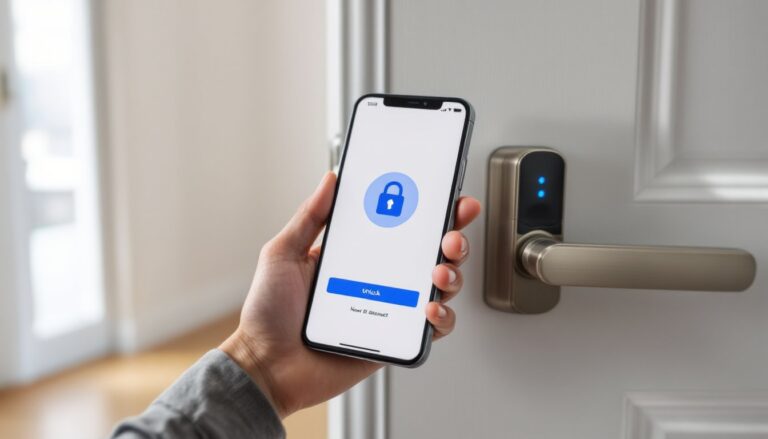
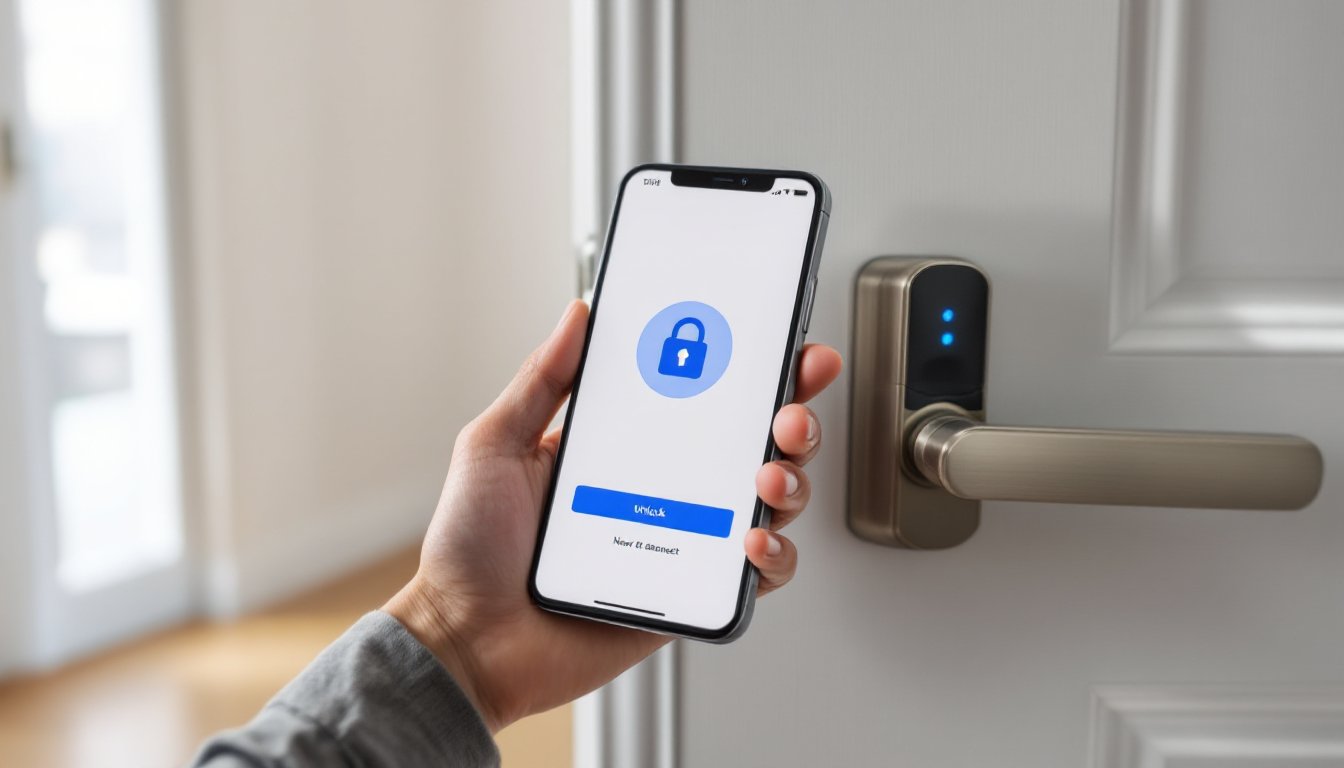
The Smonet smart lock app is a mobile application (available for iOS and Android) that pairs with Smonet’s line of smart deadbolts and lever locks via Bluetooth and Wi-Fi. It acts as a digital key, access log, and control panel all in one.
Once the lock is installed on your door and connected to your home’s Wi-Fi network, the app communicates with the lock’s internal controller board. Users can unlock or lock the door remotely, create temporary access codes for guests or contractors, monitor entry history, and receive real-time alerts when someone enters.
The system relies on AES 128-bit encryption for data transmission, which is standard for consumer-grade smart locks. The lock itself requires four AA batteries (typically lasting 6–12 months depending on usage) and includes a low-battery warning through the app.
One key distinction: Smonet locks operate on a local network for Bluetooth control (within ~30 feet) and require a Wi-Fi gateway for remote access outside your home. This is similar to most budget-friendly smart lock systems and keeps costs down compared to proprietary hubs. Many users appreciate the budget-friendly smart security approach that Smonet offers, especially for secondary doors or rental properties.
Step-by-Step Guide to Downloading and Installing the Smonet App
Before you can control your lock, you’ll need to get the app running and paired with your hardware. Here’s the sequence:
1. Download the Smonet app
Head to the Apple App Store or Google Play Store and search for “Smonet Smart.” The official app icon is typically blue with a lock symbol. Install it.
2. Create an account
Open the app and tap “Sign Up.” You’ll need a valid email address and a password that meets the app’s security requirements (usually at least 8 characters, including a number and symbol). Confirm via the verification email sent to your inbox.
3. Add your lock
Tap the “+” icon or “Add Device” button. Select your lock model from the list. Make sure your lock is installed, powered (batteries inserted), and within Bluetooth range of your phone.
4. Follow pairing prompts
The app will scan for nearby devices. Press the lock’s pairing button (location varies by model, check your manual, but it’s usually inside the battery compartment). When your lock appears on screen, tap it to pair.
5. Connect to Wi-Fi (optional but recommended)
For remote access, you’ll need to connect the lock to your home’s 2.4 GHz Wi-Fi network (most smart locks don’t support 5 GHz bands). Enter your network credentials when prompted. The lock will blink or beep to confirm connection.
6. Test the connection
Once paired, try locking and unlocking via the app. Stand close initially to confirm Bluetooth works, then step outside or move to another room to test remote functionality.
Heads-up: If pairing fails, reboot your phone, confirm Bluetooth and location permissions are enabled for the app (required for Bluetooth discovery), and double-check that your lock firmware is up to date. Firmware updates are pushed through the app under Settings.
Key Features That Make the Smonet App Stand Out
Smonet’s app isn’t flashy, but it covers the essentials and adds a few conveniences that matter in day-to-day use. Here’s what sets it apart in a crowded field.
Remote Access and Control
Once connected to Wi-Fi, users can lock or unlock their door from anywhere with cell service or internet access. This is particularly useful if you need to let in a pet sitter, forgot to lock up, or want to verify your door’s status while traveling.
The app displays real-time lock status (locked, unlocked, or jammed) and logs every entry with a timestamp and method (app, code, fingerprint, or physical key). This audit trail is stored locally and can be exported if needed, helpful for landlords or Airbnb hosts tracking access.
Notifications can be customized. You can receive push alerts when the door is unlocked, when a specific user code is entered, or if the lock is tampered with (e.g., repeated failed unlock attempts). These settings are toggled under the “Notifications” menu.
User Management and Access Codes
The app supports multiple user profiles, each with different permission levels. The administrator (the account that initially set up the lock) can add or remove users, create temporary passcodes, and delete access logs.
Temporary access codes are a standout. You can generate a six- to eight-digit code valid for a specific date range or even a one-time use. This is ideal for contractors, cleaners, or guests. Codes expire automatically, so there’s no need to remember to revoke access manually.
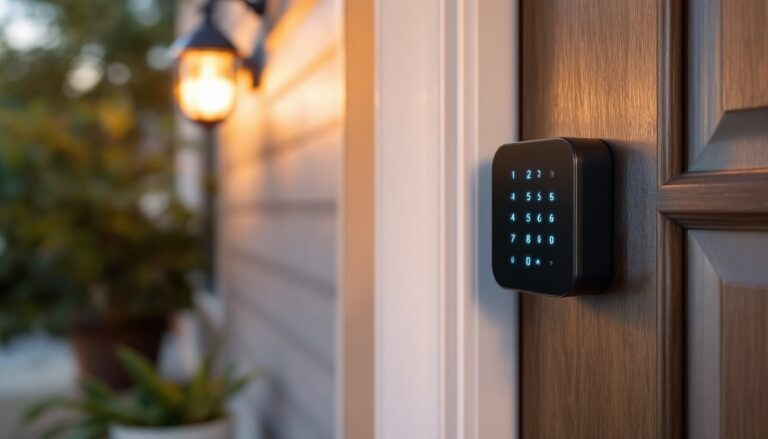
Fingerprint integration (on compatible Smonet models) is managed through the app as well. Users can register up to 100 fingerprints, assign names to each (e.g., “Mom,” “Handyman”), and delete them remotely if needed.
For families, the app allows family sharing, meaning multiple smartphones can control the same lock without needing to share login credentials. Each family member gets their own account with tailored permissions. Independent reviews, like this affordable keyless entry analysis, often highlight user management as a key selling point for multi-user households.
Common Troubleshooting Tips for the Smonet Smart Lock App
No smart lock is immune to hiccups. Here’s how to address the most frequent complaints.
App won’t pair with the lock
First, confirm your phone’s Bluetooth is on and location services are enabled (both iOS and Android require location access for Bluetooth pairing). Reset the lock by removing the batteries for 10 seconds, then reinsert them. Try pairing again.
Remote access not working
Check that the lock is connected to your 2.4 GHz Wi-Fi network. Log into your router and verify the lock appears as a connected device. If it’s dropped off, re-enter your Wi-Fi credentials in the app. Also, confirm your phone has an active internet connection (cellular or Wi-Fi).
Lock unresponsive or slow to react
Battery level is the usual culprit. Replace all four AA batteries with fresh alkaline or lithium cells (lithium lasts longer in extreme temps). If the lock still lags, check for firmware updates under Settings > Device Info. Smonet periodically releases patches to improve response time.
Access codes not working
Double-check the code was entered correctly on the keypad. If you’re generating a temporary code, verify the date range hasn’t expired and that the code length matches your lock’s requirements (some models require exactly six digits, others allow up to eight). Delete and recreate the code if needed.
App crashes or freezes
Uninstall and reinstall the app, then log back in. Make sure you’re running the latest version from the app store. Clear the app cache (Android) or offload and reinstall (iOS) if crashes persist.
Tamper alerts or false notifications
Sensitivity settings can be adjusted under Notifications. If you’re getting too many alerts (e.g., from wind or vibration), dial down the tamper detection threshold. Testing by experts, such as in this Smonet smart lock review, sometimes note that tamper alerts can be overly sensitive out of the box.
Maximizing Security and Privacy with Your Smonet App Settings
Smart locks introduce new conveniences, and new attack surfaces. Here’s how to lock down your Smonet app and device.
Use a strong, unique password
Your app account is the gateway to your front door. Use a password manager to generate and store a complex passphrase (at least 12 characters, mixing upper/lowercase, numbers, and symbols). Never reuse passwords from other accounts.
Enable two-factor authentication (if available)
As of this writing, Smonet’s app does not natively support 2FA, but check for updates. If it becomes available, turn it on immediately.
Limit user permissions
Don’t give everyone administrator access. Grant “guest” or “user” roles to family members or temporary visitors, reserving admin privileges for one or two trusted accounts. Regularly audit the user list and delete inactive profiles.
Review access logs weekly
The app’s history tab shows every unlock event. Make it a habit to scan for unfamiliar entries, especially if you’ve shared temporary codes. If something looks off, change your Wi-Fi password, reset the lock, and update all access codes.
Keep firmware updated
Security patches are delivered via firmware updates. Enable auto-update if the option exists, or manually check for updates monthly under Settings.
Secure your home network
Your lock is only as secure as your Wi-Fi. Use WPA3 encryption (or WPA2 if your router doesn’t support WPA3), change the default router admin password, and create a separate guest network for IoT devices if your router allows it. This isolates your lock from your primary devices in case of a breach.
Disable remote access when not needed
If you’re home for an extended period and don’t need remote unlocking, you can disconnect the lock from Wi-Fi. This reduces your attack surface and forces any access to happen locally via Bluetooth or keypad.
Physical security still matters
A smart lock won’t help if your door frame is weak or your strike plate is secured with half-inch screws. Use 3-inch screws to anchor the strike plate into the wall stud, and consider a reinforced door frame kit if you’re in a high-risk area. The lock is just one layer in a defense-in-depth strategy.