Table of Contents
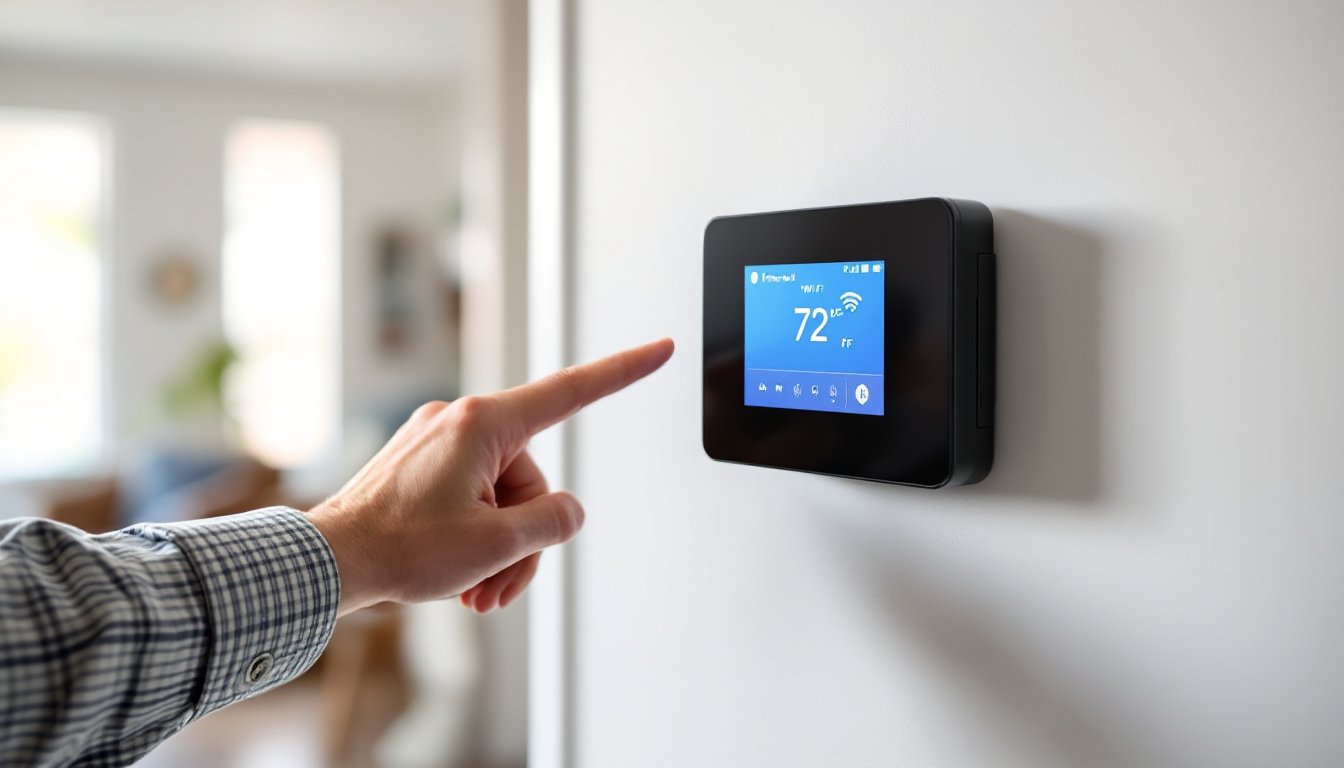
ToggleThe Honeywell RTH9580 Wi-Fi Smart Thermostat bridges the gap between old-school programmable thermostats and app-controlled climate management. It’s a solid choice for homeowners who want remote access and energy tracking without the premium price tag of high-end units. This guide walks through everything from installation to troubleshooting, with a focus on getting it running yourself. Whether you’re replacing an ancient dial thermostat or upgrading from a basic programmable model, the RTH9580 offers enough features to justify the switch, and it’s DIY-friendly for anyone comfortable with basic electrical work.
Key Takeaways
- The Honeywell RTH9580 Wi-Fi smart thermostat eliminates the need for a C-wire in most homes by including a power adapter kit, making it more accessible than competitors for older installations.
- Remote temperature control and 7-day flexible scheduling through the Total Connect Comfort app let you avoid heating or cooling empty homes, where most energy waste occurs.
- The RTH9580 connects only to 2.4 GHz Wi-Fi networks and works with 24-volt forced air, radiant heat, and geothermal systems, so verify compatibility before purchasing.
- Energy savings depend on scheduling discipline and occupancy awareness rather than the thermostat’s intelligence—users with existing habits may see modest returns on investment.
- Common issues like Wi-Fi disconnections, low voltage, and incorrect system type configuration are straightforward to diagnose and fix using the included guides and a basic multimeter.
- Practical energy-saving strategies include extending setback periods during absences, monitoring runtime reports for efficiency problems, and prioritizing filter maintenance to maintain system performance.
What Makes the RTH9580 Wi-Fi Smart Thermostat Stand Out
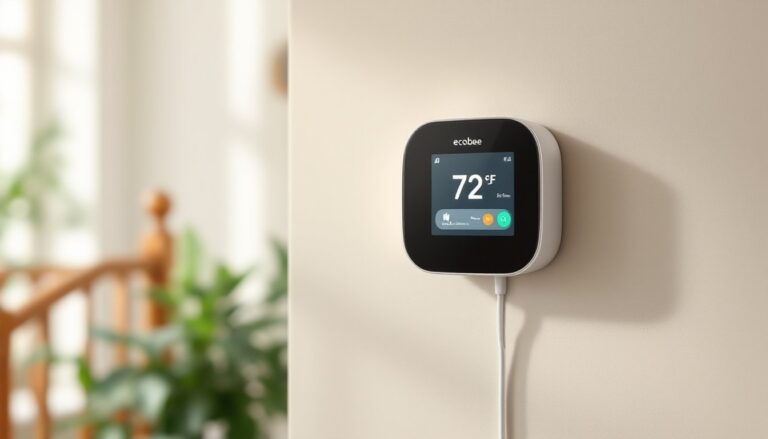
The RTH9580 sits in the mid-tier smart thermostat category, offering practical features without unnecessary complexity. It works with most 24-volt HVAC systems (gas, oil, electric, and heat pumps up to 2-stage heating and cooling). The color touchscreen is responsive and easier to read than monochrome displays found on cheaper models. You won’t find learning algorithms or occupancy sensors here, this thermostat sticks to straightforward scheduling and remote control.
One major advantage: it doesn’t require a C-wire (common wire) in most installations. The unit includes a power adapter kit that taps into your HVAC system’s transformer, which solves the biggest headache for older homes. If your current thermostat uses only four or five wires and no C-wire is present, the adapter usually handles it. This makes the RTH9580 more accessible than competitors that demand C-wire retrofits or battery power.
Compatibility matters. The RTH9580 works with forced air systems, radiant heat, and some geothermal setups, but it won’t control line-voltage systems (like baseboard heaters or 120/240-volt systems). Check your existing wiring before buying. If you see thick wires or a voltage rating above 30V on your current thermostat, you’ll need a different model.
Key Features and Smart Capabilities
The Total Connect Comfort app (iOS and Android) is the control center for remote adjustments. You can change temperature, switch between heat/cool/auto modes, and view runtime data from anywhere with cell service. The app isn’t flashy, but it’s stable and doesn’t require a subscription. Many smart home device reviews emphasize the importance of reliable app performance, and the RTH9580 delivers consistent connectivity without constant firmware updates.
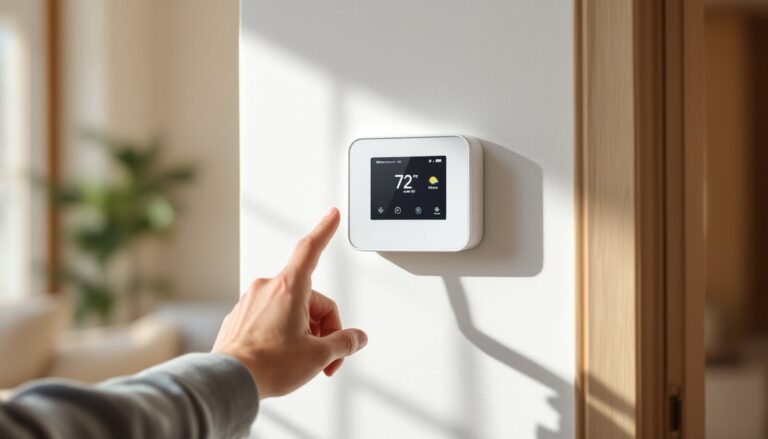
7-day flexible scheduling lets you set different programs for each day of the week, with up to four time periods per day. This beats basic 5-1-1 or 5-2 programming found on older thermostats. If your household has irregular schedules, shift work, remote work days, weekend trips, the granular control helps. The touchscreen interface makes schedule adjustments faster than scrolling through button-based menus.
Energy usage tracking displays daily and monthly runtime for heating and cooling. It’s not as detailed as utility-level monitoring, but it gives you enough data to spot inefficiencies. If your system runs constantly or cycles too frequently, the history logs help pinpoint issues. The thermostat also sends filter change reminders based on runtime, which is more accurate than calendar-based guesses.
Geofencing is absent, as is integration with voice assistants or smart home platforms like Amazon Alexa or Google Home. For homeowners who want a thermostat that simply works remotely without linking to a whole ecosystem, that’s not a dealbreaker. If you need voice control or IFTTT routines, look elsewhere.
Installing Your RTH9580: A DIY-Friendly Step-by-Step Process
Safety first: Turn off power at the breaker before touching any wiring. HVAC systems run on low-voltage (24V), but mistakes can damage your equipment or the thermostat. If you’re unsure which breaker controls your furnace or air handler, flip breakers until the system stops running.
Tools and materials you’ll need:
- Phillips screwdriver
- Small flathead screwdriver (for terminal screws)
- Wire labels or painter’s tape
- Drill with 3/16″ bit (if anchors are needed)
- Level (optional but helpful)
- Pencil
Step-by-step installation:
-
Remove the old thermostat. Pop off the faceplate and unscrew the base from the wall. Take a photo of the wiring before disconnecting anything. Label each wire with tape or the included stickers (R, C, Y, W, G, etc.). The letter corresponds to its terminal.
-
Check for a C-wire. If you see a wire (usually blue or black) connected to a terminal labeled “C” or “Common,” you’re set. If not, you’ll install the included power adapter kit at your furnace or air handler. The kit includes a transformer and wiring instructions. It mounts near the HVAC control board and connects to the same terminal block where your thermostat wires originate. Follow the included wiring diagram, it’s simpler than it looks.
-
Mount the RTH9580 base plate. The thermostat hangs on a backplate that screws into the wall. Use a level to ensure it’s straight. If your old thermostat left a large hole or discolored patch, the RTH9580’s base plate may not cover it. You might need a trim plate (sold separately) or a quick drywall patch and paint touch-up.
-
Connect the wires. Match each labeled wire to the corresponding terminal on the new thermostat. Tighten the terminal screws, loose connections cause intermittent failures. If you have two wires on a single terminal (common with dual-fuel or multi-stage systems), both can share the same terminal as long as they’re secure.
-
Snap on the faceplate and restore power. The touchscreen should light up within a few seconds. The setup wizard walks through system type, heating/cooling stages, and fan settings. Be accurate here, selecting the wrong system type can cause short-cycling or failure to reach temperature.
When to call a pro: If your system uses proprietary wiring, has more than eight wires, or you’re dealing with a heat pump with auxiliary heat and complex staging, hire an HVAC tech. Structural work (like running a new C-wire through walls) may also warrant professional help, especially in multi-story homes.
Setting Up Wi-Fi Connectivity and App Integration
The RTH9580 connects to 2.4 GHz Wi-Fi networks only, it won’t see 5 GHz bands. If your router broadcasts both, make sure the 2.4 GHz band is enabled and visible. Many modern routers hide or disable this band by default, favoring faster 5 GHz channels.
Connection process:
-
On the thermostat, go to Menu > Wi-Fi Setup > Connect to Network. The screen displays available networks. Select yours and enter the password using the touchscreen keyboard. Be precise, Wi-Fi passwords are case-sensitive.
-
Once connected, the thermostat displays a MAC address and confirmation message. The Wi-Fi icon appears in the status bar (top of the screen).
-
Download the Total Connect Comfort app and create an account. Follow the prompts to add a device. You’ll enter a code displayed on the thermostat screen to pair it with your app.
Common Wi-Fi issues:
-
Weak signal: If the thermostat is mounted on an interior wall far from the router, signal strength can drop. Consider a Wi-Fi extender or mesh system. Walls with metal studs, plaster lath, or dense insulation can block signals more than standard drywall.
-
Router firewall or security settings: Some routers block IoT devices by default. Check your router’s admin panel and ensure the thermostat’s MAC address isn’t blacklisted. UPnP (Universal Plug and Play) should be enabled.
-
Network congestion: If you have dozens of devices on 2.4 GHz (smart plugs, cameras, etc.), the band can saturate. Prioritize the thermostat in your router’s QoS (Quality of Service) settings if available.
The app allows multiple users, so family members can control the thermostat from their phones. Access is all-or-nothing, you can’t restrict certain features per user. Many home automation guides recommend assigning admin access carefully, especially if you have kids who might crank the heat as a prank.
Programming and Customizing Your Temperature Schedules
7-day scheduling is the RTH9580’s strength. Each day gets up to four time periods: Wake, Leave, Return, and Sleep. You can copy a day’s schedule to other days or build each one from scratch. If your weekdays vary, program each individually rather than settling for a 5-2 schedule.
Recommended temperature setpoints (per Department of Energy guidelines):
-
Heating season: 68°F when home and awake, 60-62°F when asleep or away for 8+ hours. Each degree below 68°F saves roughly 3% on heating costs.
-
Cooling season: 78°F when home, 85°F when away. Avoid setting the thermostat below 72°F, it won’t cool faster and wastes energy.
Programming tips:
-
Anticipate warmup/cooldown time. If you want the house at 68°F by 7 a.m., set the Wake period for 6:30 a.m. Most systems need 15-30 minutes to reach target temperature, depending on insulation and outdoor conditions.
-
Use the temporary hold feature sparingly. The thermostat has a “Hold Until” option that overrides the schedule until the next period. Frequent overrides defeat the purpose of scheduling. If your routine changes permanently, edit the schedule instead.
-
Adjust for seasonal changes. In spring and fall, you might disable heating or cooling entirely and rely on natural ventilation. The thermostat’s auto-changeover mode switches between heat and cool automatically, but it can cause unnecessary cycling during mild weather.
The app mirrors all thermostat functions, so you can program on your phone instead of pecking at the touchscreen. Schedule changes sync within a few seconds. If you make edits on both the thermostat and app simultaneously, the most recent change wins, there’s no conflict resolution.
Troubleshooting Common RTH9580 Issues
Thermostat won’t power on: Check the breaker and verify voltage at the HVAC control board. Use a multimeter to test the R (power) and C (common) wires, should read close to 24V AC. If the power adapter kit isn’t seated properly on the transformer terminals, voltage may be absent. Re-check all connections and ensure wires aren’t pinched.
Wi-Fi keeps disconnecting: Router firmware updates or ISP modem reboots can break the connection. Re-run the Wi-Fi setup from the thermostat menu. If dropouts are frequent, your router may be cycling channels automatically, lock the 2.4 GHz band to a specific channel (1, 6, or 11) to reduce interference.
System doesn’t reach set temperature: Verify system type in the settings menu. If the thermostat thinks you have single-stage heat but your furnace is two-stage, it won’t call for the second stage. Check the installation manual’s wiring chart. Also inspect air filters, a clogged filter restricts airflow and reduces efficiency more than most people realize.
Blank screen or intermittent display: Low voltage from the transformer is the usual culprit. HVAC transformers degrade over time, especially in older systems. Test voltage at the thermostat terminals with a multimeter. Below 22V, replace the transformer, they’re inexpensive (around $20-$30) and available at any HVAC supply store. If you’re uncomfortable working inside the furnace cabinet, call an HVAC tech. Many home tech trends highlight the importance of stable power delivery to smart devices, and thermostats are no exception.
App says “offline” but thermostat works locally: This points to a network issue, not a thermostat failure. Check if other smart devices are online. Restart your router and wait five minutes for the thermostat to reconnect. If problems persist, delete the thermostat from the app and re-pair it.
Thermostat clicks but system doesn’t start: Wiring is correct, but there may be an issue at the HVAC unit. Check for tripped safety switches, blown fuses on the control board, or a failed contactor. If you hear a hum but no fan or compressor action, that’s an HVAC problem, not a thermostat issue.
Maximizing Energy Savings with Your Smart Thermostat
Smart thermostats save money by reducing runtime, not by working harder. The RTH9580’s scheduling and remote access let you avoid heating or cooling an empty house, which is where most waste occurs.
Practical energy-saving strategies:
-
Extend setback periods. If you’re away for 8+ hours, set the temperature back aggressively. The energy saved during that time exceeds the cost of bringing the house back to comfort level. The “it takes more energy to reheat” myth applies only to extremely short setbacks (under 2 hours).
-
Adjust for occupancy and activity. If you’re home but mostly in one room, consider closing vents in unused spaces (only if you have a standard forced-air system, don’t restrict airflow on heat pumps or high-efficiency variable-speed systems). The thermostat can handle a lower overall setting if airflow is concentrated.
-
Use the app for last-minute changes. Leaving work early? Adjust the Return period from your phone so the system doesn’t run an extra hour unnecessarily. Going on vacation? Set a long hold or create a temporary “Away” schedule.
-
Monitor runtime reports. If heating or cooling runs more than 40-50% of the day in moderate weather, you have an efficiency problem, poor insulation, duct leaks, or an undersized/oversized system. The RTH9580’s usage data helps identify patterns.
Filter maintenance is the easiest way to maintain efficiency. The thermostat prompts filter changes based on runtime, but inspect your filter monthly, especially if you have pets or live in a dusty area. A 1″ fiberglass filter (MERV 4-6) needs monthly replacement, while 4″ pleated media filters (MERV 8-11) last 3-6 months. Higher MERV ratings (13+) restrict airflow on older systems, only use them if your HVAC tech confirms your blower can handle the static pressure.
Avoid extreme setpoints. Setting the thermostat to 60°F in summer or 85°F in winter won’t achieve faster cooling or heating, it just makes the system run longer. HVAC equipment delivers a fixed output rate: it can’t speed up.
The RTH9580 doesn’t offer utility rebates or demand-response programs in most regions, unlike some high-end models. Check your local utility’s website, some offer rebates for any Wi-Fi thermostat, which could offset part of the purchase price. Energy savings depend on your current habits: if you already run a tight schedule with a programmable thermostat, the RTH9580 won’t deliver dramatic reductions. The value is in convenience and remote control, not revolutionary efficiency.